
Translate Your .xcstrings File in Minutes, Not Days (2026 Guide)
Stop waiting weeks for translations. Translate your Xcode String Catalog to 24 languages in under 10 minutes with AI context analysis. Step-by-step guide with free trial.
If you need to translate Xcode String Catalog files for your iOS or macOS app, you have several options — manual translation, export/import workflows with XLIFF, or AI-powered tools. This guide covers how to translate .xcstrings files quickly using AI while maintaining production-ready quality.
An xcstrings translator can reduce localization time from days to minutes, but only if you understand how String Catalogs work and what to check before shipping.
What is an Xcode String Catalog (.xcstrings)?
Apple introduced String Catalogs in Xcode 15 as the modern replacement for Localizable.strings and .stringsdict files. A String Catalog is a single JSON-based file that contains:
- All localizable strings in your app
- Plural variations (one, few, many, other, etc.)
- Device-specific variations (iPhone, iPad, Mac, Watch)
- Translation states (translated, needs review, stale)
- Comments for translator context
Here's what a String Catalog looks like in Xcode's editor:
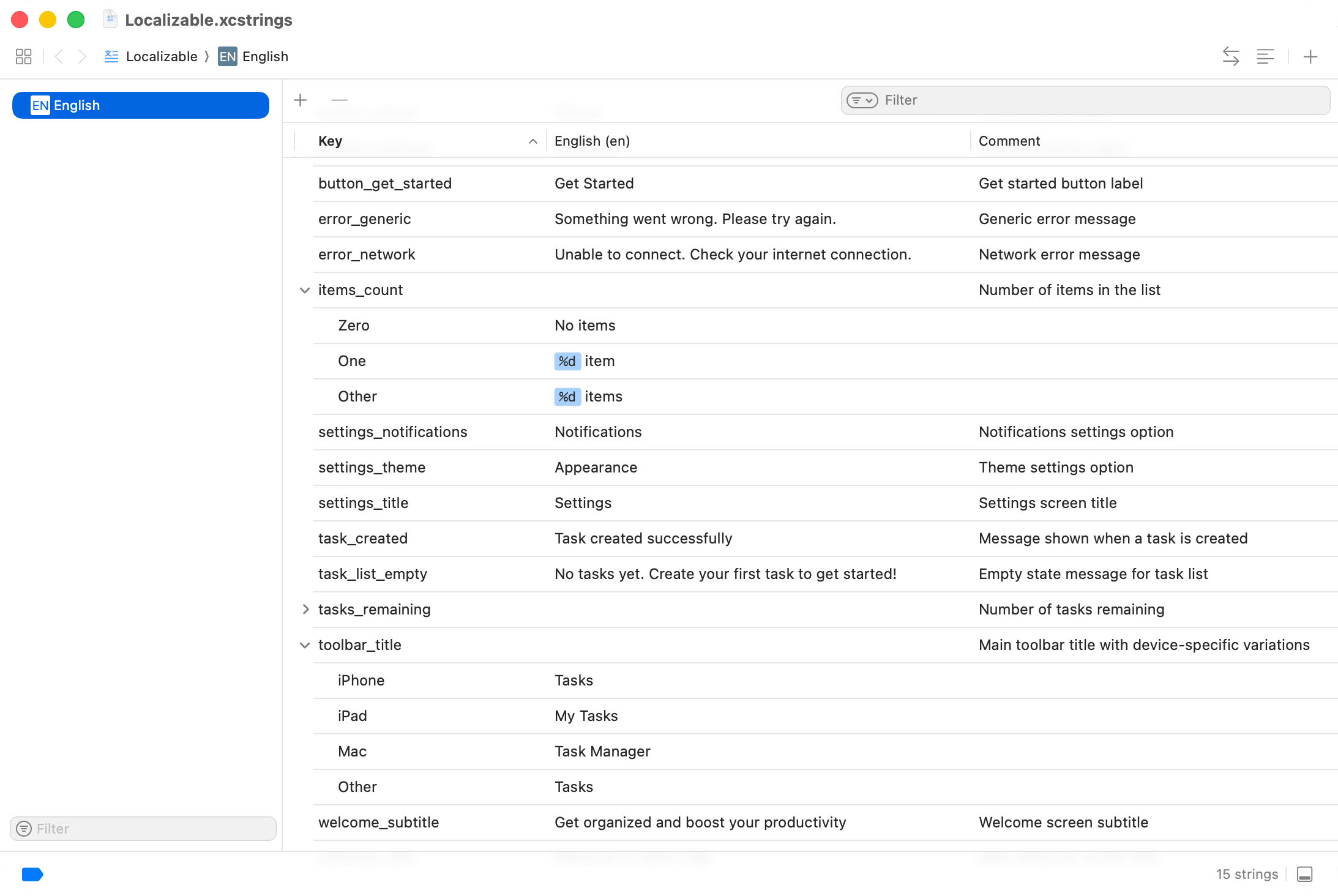
The main advantage is consolidation — instead of managing separate files for each language and plural rules, everything lives in one .xcstrings file that Xcode keeps synchronized with your code.
Traditional Localization Workflow (and Its Pain Points)
Before AI translation tools, the typical workflow looked like this:
- Export — Use Xcode's Product → Export Localizations to create
.xclocbundles - Send — Email or upload files to translators or a localization service
- Wait — Days or weeks for translations to come back
- Import — Use Product → Import Localizations to bring translations back
- Fix — Manually correct broken plurals, placeholder errors, and inconsistencies
- Repeat — Every release cycle
The problems with this workflow:
- Context loss — Translators see isolated strings without knowing if "Save" is a button, menu item, or filename
- Plural mistakes — Many languages have complex plural rules (Arabic has 6 forms) that translators may not handle correctly
- Placeholder errors — Non-technical translators sometimes break
%@or%dplaceholders - Slow iteration — You can't quickly test how translations look in your UI
How AI Translation Works for String Catalogs
AI translation tools like StringWise take a different approach:
- Direct import — Read the
.xcstringsfile directly, no export step needed - Context analysis — Scan your source code to understand where each string is used
- Batch translation — Send strings to AI models optimized for each language
- Automatic pluralization — Generate correct plural forms based on CLDR rules
- Instant export — Write translations back to the String Catalog immediately
The key difference is context. When an AI knows that "Save" appears on a button in a document editor, it chooses the correct translation (guardar in Spanish) rather than guessing between multiple meanings (ahorrar, salvar).
Step-by-Step: Translating Your First String Catalog
Here's how to translate a String Catalog using StringWise:
Step 1: Create or locate your String Catalog
In Xcode 15+, you likely already have a String Catalog. Check your project navigator for a file ending in .xcstrings. If you're migrating from Localizable.strings, Xcode can convert it automatically via Editor → Migrate to String Catalog.
Step 2: Import into StringWise
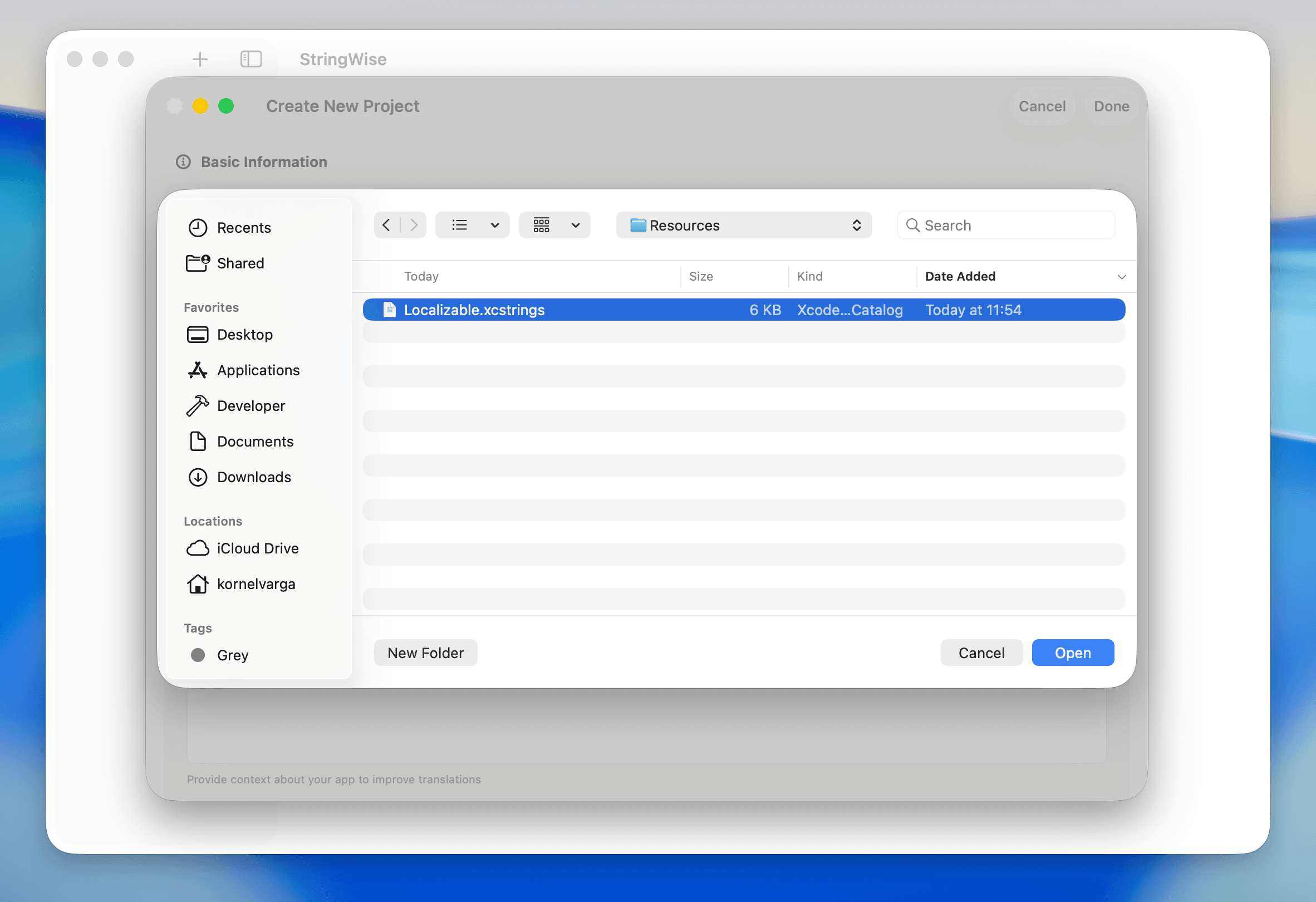
Open StringWise and choose how to import:
- Project folder (recommended) — Select your entire Xcode project folder. This enables Smart Context, which analyzes your Swift/ObjC code to understand string usage.
- Single file — Select just the
.xcstringsfile if you don't need code context.
The import dialog lets you browse to your project or drag and drop directly:
Step 3: Configure languages and style
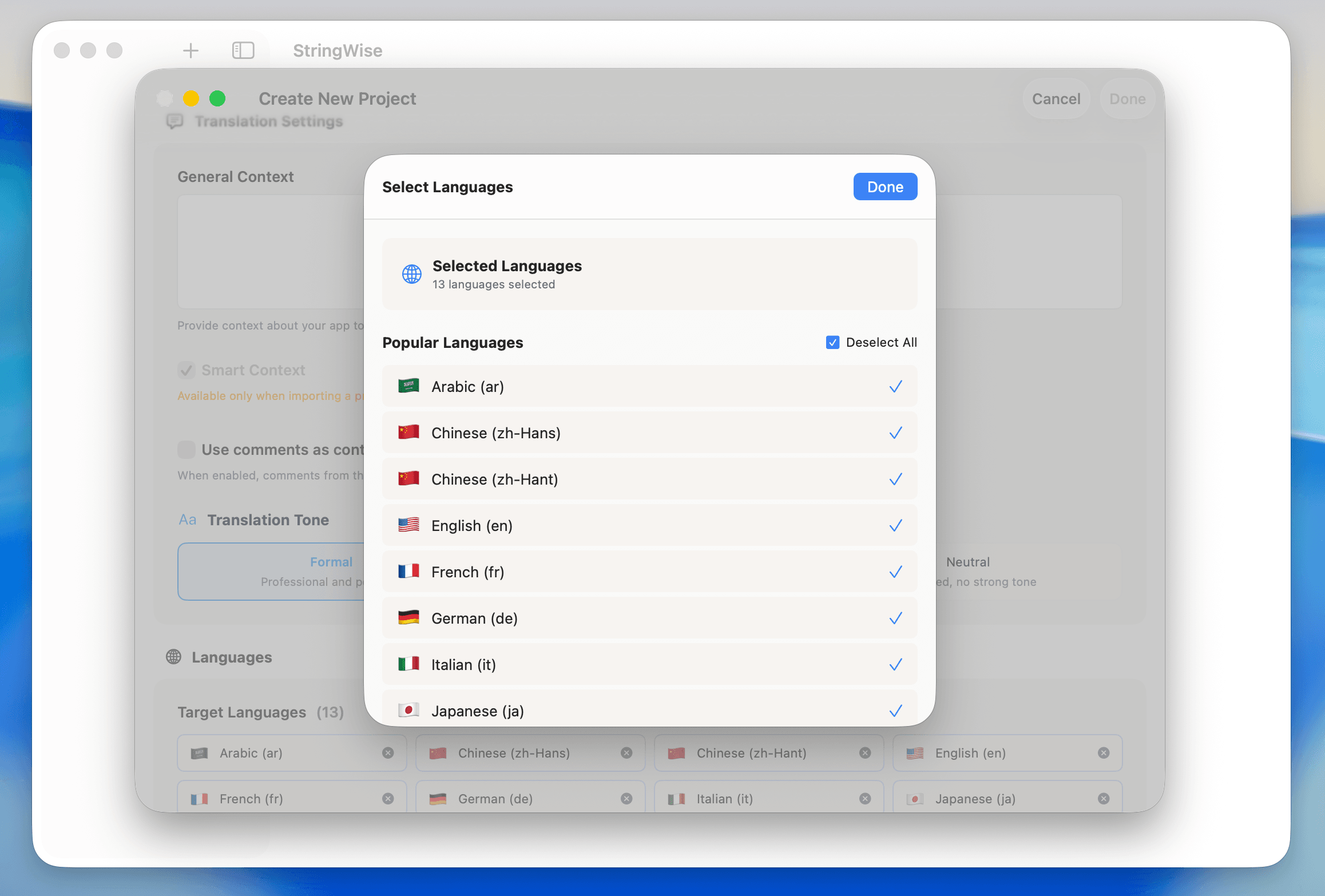
After importing, you'll see the language configuration screen. Select your settings:
- Source language — Usually English (or whatever your base localization is)
- Target languages — Pick from 24 available languages covering top App Store markets
- Translation style — Formal, casual, or neutral tone
The language picker shows all supported languages, with popular App Store markets highlighted:
Step 4: Enable context features
For best results, enable:
- Smart Context — Analyzes your source code on-device to understand where each string appears (button, alert, empty state, etc.)
- Use comments as context — Reads any comments you've added to strings in Xcode
These features dramatically improve translation accuracy for short, ambiguous strings.
Step 5: Generate translations
Click translate and wait for the process to complete. StringWise:
- Processes strings efficiently in optimized batches
- Uses AI models selected for each target language
- Generates all required plural forms automatically
- Preserves all placeholders exactly as they appear in the source
Step 6: Review and export
Before exporting:
- Scan for any strings marked as needing review
- Spot-check high-visibility strings (paywall, onboarding, CTAs)
- Verify placeholder counts match between source and translations
Export the completed String Catalog back to your Xcode project.
Handling Plurals, Placeholders, and Device Variations
String Catalogs support three types of variations that require special handling:
Plural forms
Different languages have different plural rules defined by CLDR (Unicode Common Locale Data Repository):
| Language | Plural Forms |
|---|---|
| English | one, other |
| Russian | one, few, many, other |
| Arabic | zero, one, two, few, many, other |
| Chinese | other (no plural distinction) |
StringWise automatically generates the correct forms for each target language. You don't need to manually specify which categories to translate.
Example source string:
%lld items selected
Generated Arabic translation (6 forms):
zero: "لم يتم تحديد أي عنصر"
one: "تم تحديد عنصر واحد"
two: "تم تحديد عنصران"
few: "تم تحديد %lld عناصر"
many: "تم تحديد %lld عنصرًا"
other: "تم تحديد %lld عنصر"
Placeholders
Format specifiers must be preserved exactly:
%@— Objects (strings, etc.)%d,%lld— Integers%f— Floating point%1$@,%2$@— Positional (for languages with different word order)
StringWise validates placeholder integrity and will flag any translation where placeholders don't match the source.
Device variations
String Catalogs can contain different text for different devices:
iPhone: "Tap to continue"
iPad: "Tap or click to continue"
Mac: "Click to continue"
Apple Watch: "Tap to continue"
Each device variation is translated separately, maintaining platform-appropriate terminology.
Quality Assurance Tips
Before shipping translated builds, run through this checklist:
Technical checks:
- All placeholders preserved and in correct order
- All required plural forms present
- No untranslated strings remaining
- Device variations translated for all platforms you support
Content checks:
- Paywall and purchase-related strings are accurate
- Destructive action confirmations are clear
- App name and product terms are consistent
- No obviously machine-translated phrases
Visual checks:
- Run the app in each language and check for truncation
- Verify RTL layout for Arabic and Hebrew
- Check that formatted numbers display correctly
For a comprehensive checklist, see the String Catalog QA checklist.
Frequently asked questions
What is an xcstrings file?
An xcstrings file is Apple's String Catalog format introduced in Xcode 15. It stores all localizable strings in a single JSON-based file, replacing the older Localizable.strings and .stringsdict formats.
How long does it take to translate a String Catalog?
Translation time depends on the number of strings and target languages. A typical app with 200 strings can be translated to 10 languages in under 5 minutes.
Will AI translation preserve my placeholders?
Yes. StringWise validates that all placeholders (%@, %d, %lld, etc.) are preserved in the translated output. Broken placeholders would cause runtime crashes, so this is strictly enforced.
Can I translate to all 24 languages at once?
Yes, with StringWise Pro you can select all 24 supported languages and translate in a single batch. The free tier is limited to 2 languages per project.
Is my source code uploaded to the cloud?
No. Smart Context runs entirely on-device using Apple's FoundationModels framework. Only the string content (not your source code) is sent to translation APIs.
Start translating your String Catalog
Ready to localize your app? Download StringWise and try the xcstrings translator workflow with a 3-day free trial. Import your project, select languages, and have production-ready translations in minutes instead of days.